Connecting Microsoft Teams lets a Send a Microsoft Teams Message step pick a team and channel from a list, instead of you managing a webhook URL for every channel. It also optionally enables link unfurling, so Octopus release and deployment URLs expand into status cards when someone posts them in a Teams channel.
Connecting is optional. A Teams webhook works on its own, and is the only way to reach a private channel.
Microsoft Teams integration is available from Octopus Server version 2026.
Prerequisites
You need to register an application and grant admin consent in Microsoft Entra, create an Azure Bot in an Azure subscription, and upload an app to your organization’s Teams app catalog. If you can’t do any of these, this setup needs a Microsoft 365 or Azure administrator.
Connect Octopus to Microsoft Teams
Navigate to Configuration ➜ Settings ➜ Microsoft Teams Integration and click Add Teams Connection. The wizard walks you through the steps below, most of which happen in Microsoft’s portals.
1. Register an app in Microsoft Entra
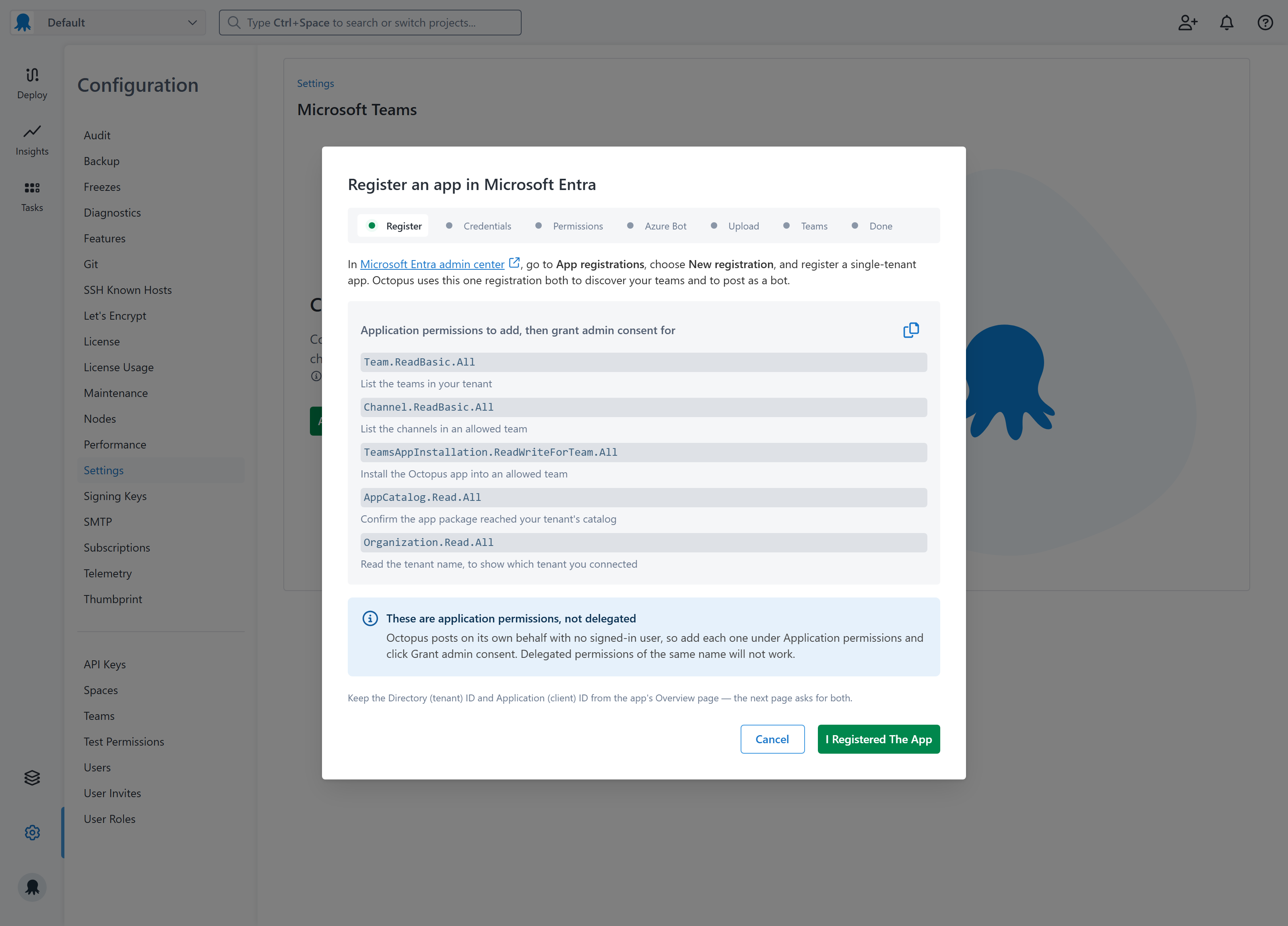
In the Microsoft Entra admin center, go to App registrations ➜ New registration and register a single-tenant app. Octopus uses this one registration both to discover your teams and to post as a bot.
Add these under API permissions, then click Grant admin consent:
| Permission | Purpose |
|---|---|
Team |
List the teams in your tenant |
Channel |
List the channels in an allowed team |
TeamsAppInstallation |
Install the Octopus app into an allowed team |
AppCatalog |
Confirm the app package reached your tenant’s catalog |
Organization |
Read the tenant name |
Add each one under Application permissions, not Delegated permissions. Octopus posts with no signed-in user, so delegated permissions of the same name will not work.
Keep the Directory (tenant) ID and Application (client) ID from the Overview page for the next step.
2. Add the app’s credentials
Enter the tenant and client IDs, then choose how Octopus authenticates:
- Client secret: create one under Certificates & secrets ➜ Client secrets and paste it. Microsoft shows the value only once, so copy it before leaving the page. Secrets expire and must be replaced.
- OpenID Connect: add the issuer and subject Octopus shows, plus the audience, under Certificates & secrets ➜ Federated credentials ➜ Other issuer. The subject must match exactly. Nothing expires, but Microsoft has to reach your Octopus Server for its OpenID Connect endpoints, so use a client secret if your server isn’t reachable from the internet.
3. Confirm the granted permissions
Octopus checks which of the five permissions were granted and shows the tenant name it read back. If consent hasn’t propagated yet, click Re-check.
4. Enable link unfurling (optional)
Choose whether to enable link unfurling. When enabled, anyone in a Team that has access to the bot can paste an Octopus release or deployment URL into a conversation and see a status card expand inline.
If you enable unfurling, the app package built in the next step includes the required Teams compose extension, and the Azure Bot step shows a messaging endpoint URL you must add to your bot.
5. Create the Azure Bot
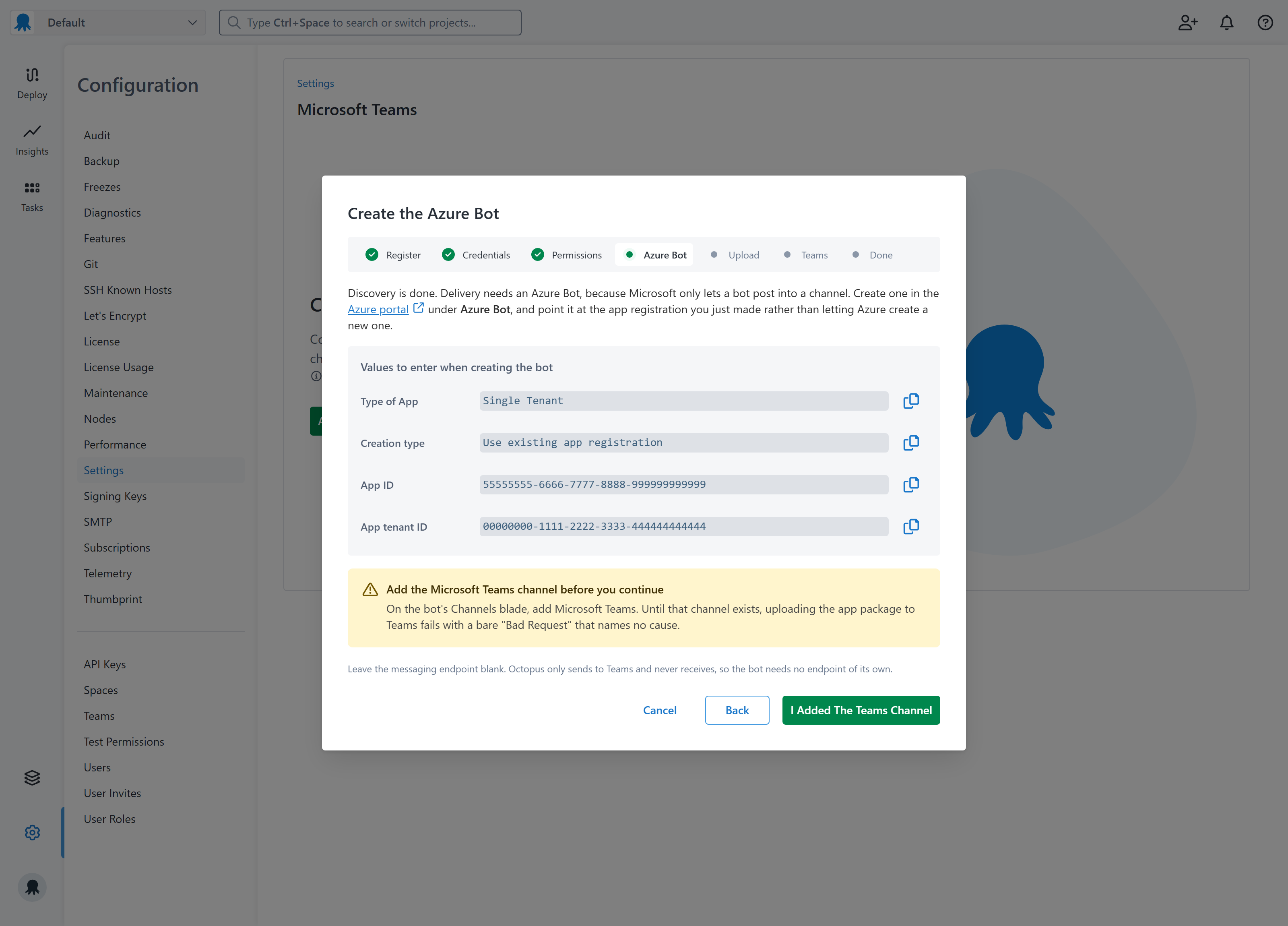
Microsoft only lets a bot post into a channel, so Octopus needs one. In the Azure portal, create an Azure Bot pointing at the registration you just made rather than letting Azure create a new one:
| Field | Value |
|---|---|
| Type of App | Single Tenant |
| Creation type | Use existing app registration |
| App ID | your Application (client) ID |
| App tenant ID | your Directory (tenant) ID |
On the bot’s Channels blade, add Microsoft Teams before continuing. Until that channel exists, uploading the app package fails with a bare “Bad Request” that names no cause.
If you enabled link unfurling, set the bot’s Messaging endpoint to the URL shown in the wizard (it follows the form https). If you did not enable unfurling, leave the endpoint blank - Octopus only sends to Teams and never needs to receive.
There’s nothing to copy back into Octopus: the bot is identified by the same app ID.
6. Upload the app to Microsoft Teams
Octopus builds an app package wired to your bot. Click Download App Package, then upload the zip in the Teams admin center under Teams apps ➜ Manage apps ➜ Upload new app. Click Check Catalog to confirm it arrived. A freshly published app may need administrator approval, and Microsoft can take up to 48 hours to make it visible.
Uploading from the Teams client instead (Apps ➜ Manage your apps ➜ Upload a custom app) sideloads the app. Octopus cannot install a sideloaded app, because the catalog it reads never lists one.
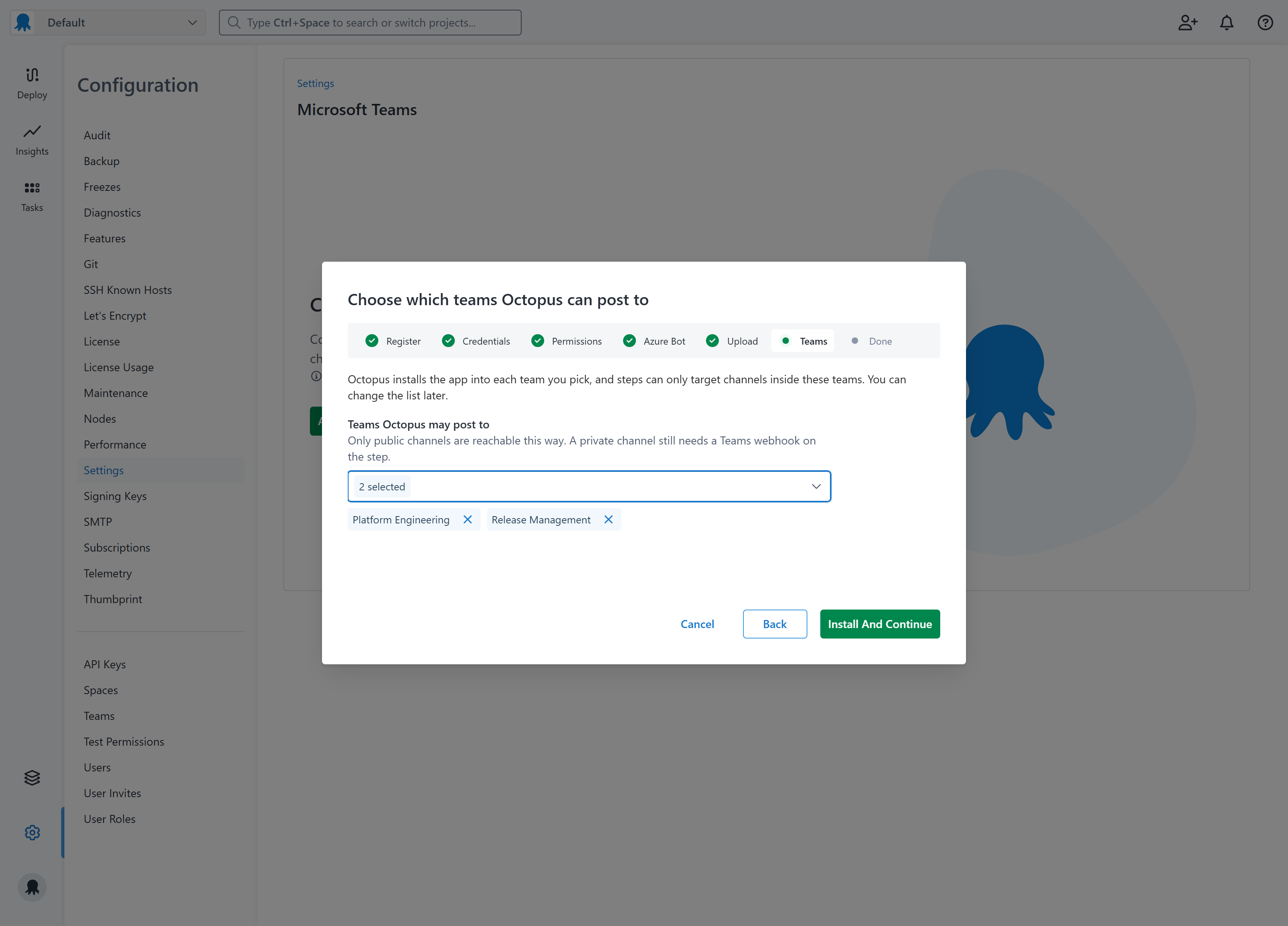
7. Choose which teams Octopus can post to
Pick the teams Octopus may use. Octopus installs its app into each one, and steps can only target channels inside them. You can change the list later.
Removing a team uninstalls the app from it. Steps already pointing at that team’s channels keep their selection and fail the next time they run, and Octopus cannot list those steps for you.
8. Send a test message
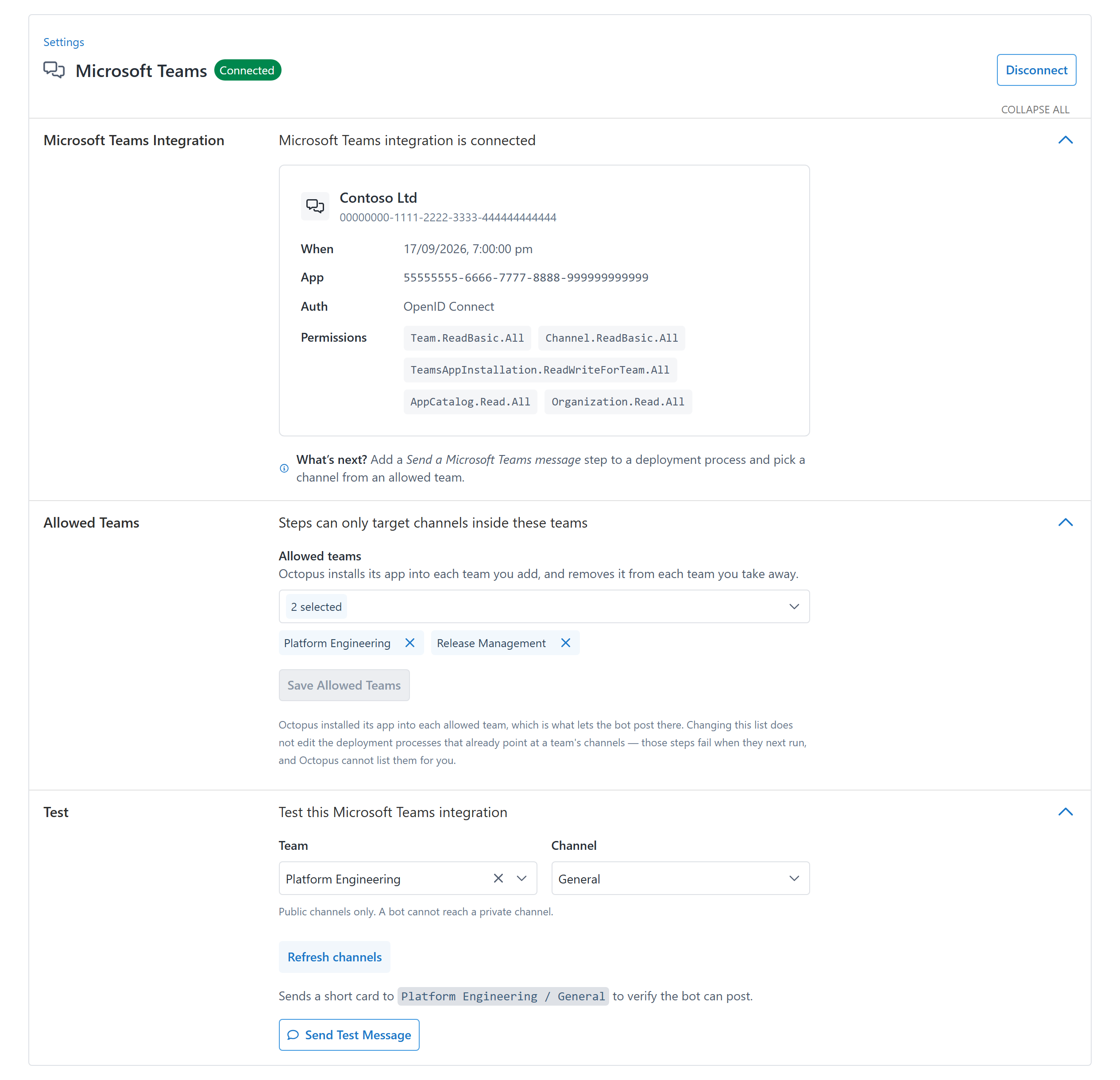
Pick a team and channel and click Send Test Message to confirm the whole chain works. You can do this again at any time from Configuration ➜ Settings ➜ Microsoft Teams Integration.
Link unfurling
When link unfurling is enabled, anyone in a Microsoft Teams with the Azure Bot can paste an Octopus release or deployment URL into a conversation. Teams sends the URL to Octopus, which responds with an Adaptive Card showing the current release status. No step or subscription configuration is needed - it works wherever URLs are shared.
Supported URLs
Unfurling activates for two URL shapes:
- Release page —
.: shows all phases in the release lifecycle.. . /Spaces-N /projects /{project} /deployments /releases /{version} - Specific deployment —
.: shows the status of that specific deployment.. . /Spaces-N /projects /{project} /deployments /releases /{version} /deployments /Deployments-N
Other Octopus URLs (projects, runbooks, tasks) are not expanded.
What the card shows
The card displays the project name and release version as a heading, then one row per lifecycle phase. Each row shows the phase name and the status of a deployment into that phase:
| Icon | Meaning |
|---|---|
| ✅ | Deployment succeeded |
| ❌ | Deployment failed |
| ⏳ | Deployment is executing |
| 🕓 | Deployment is queued |
| 🚫 | Deployment was canceled or timed out |
| ➡️ | Phase is active but has no deployment yet |
| ⬜ | Phase is pending |
The footer of the card has a Status as of {time} UTC to show when the snapshot was taken. Octopus opts out of Teams’ unfurl caching, paste the URL again to get a fresh card.
If Octopus cannot find the space, project, or release (for example, because it was deleted by a retention policy, or because Octopus lacks permission to read it), the card shows a short explanation instead of the status rows.
Permissions
Octopus reads release and deployment data as the system principal, not as the person who pasted the URL. Space-level visibility applies: if Octopus can see the space and project, the card is shown; if not, the error card is shown. No Octopus login is required from the Teams user.
Channels and webhooks
The Send a Microsoft Teams Message step posts to two kinds of destination, and one step can mix them.
Channels through the Octopus app. Pick a team and channel from the list. There’s no URL to copy or rotate, and renaming the channel in Teams won’t break the step. Only standard channels appear — a bot cannot post into a private channel.
Teams webhooks. Paste a URL created from the channel’s own Workflows dialog. This works whether or not you’ve connected the integration, and it’s the only way to reach a private channel. The URL is a credential, so Octopus stores it as a sensitive value.
Message content
A step posts either a plain text Message with variable substitution, or an Adaptive Card built from card JSON for full control of the layout. See message content on the step page for examples and the rules each format follows.
Disconnect
Go to Configuration ➜ Settings ➜ Microsoft Teams Integration and click Disconnect. Octopus uninstalls its app from the allowed teams and clears the stored secret, reporting any team it couldn’t uninstall from.
The tenant and client IDs are kept, so the page then offers Resume Setup rather than a fresh connection. The app package also stays in your catalog, so reconnecting doesn’t mean uploading it again.
Learn more
- Send a Microsoft Teams Message step: post messages as part of a deployment or runbook process.
- Subscriptions: post event digests to Teams channels using webhooks.