The Send a Microsoft Teams Message step can be used to post a message to a Teams channel at any point in a deployment or runbook process, for example to report the outcome of a deployment or alert your team to a failure.
The Send a Microsoft Teams Message step is available from Octopus Server version 2026. Posting through the Octopus app and sending an Adaptive Card are available from 2026.
Each step targets one or more channels, and can mix the two kinds:
- A channel through the Octopus app, picked from a list. This needs the Microsoft Teams integration to be connected, and reaches standard channels only.
- A Teams webhook, which needs no setup in Octopus and is the only way to reach a private channel. To create one, open the channel in Teams and choose More options ➜ Workflows, then pick the webhook template.
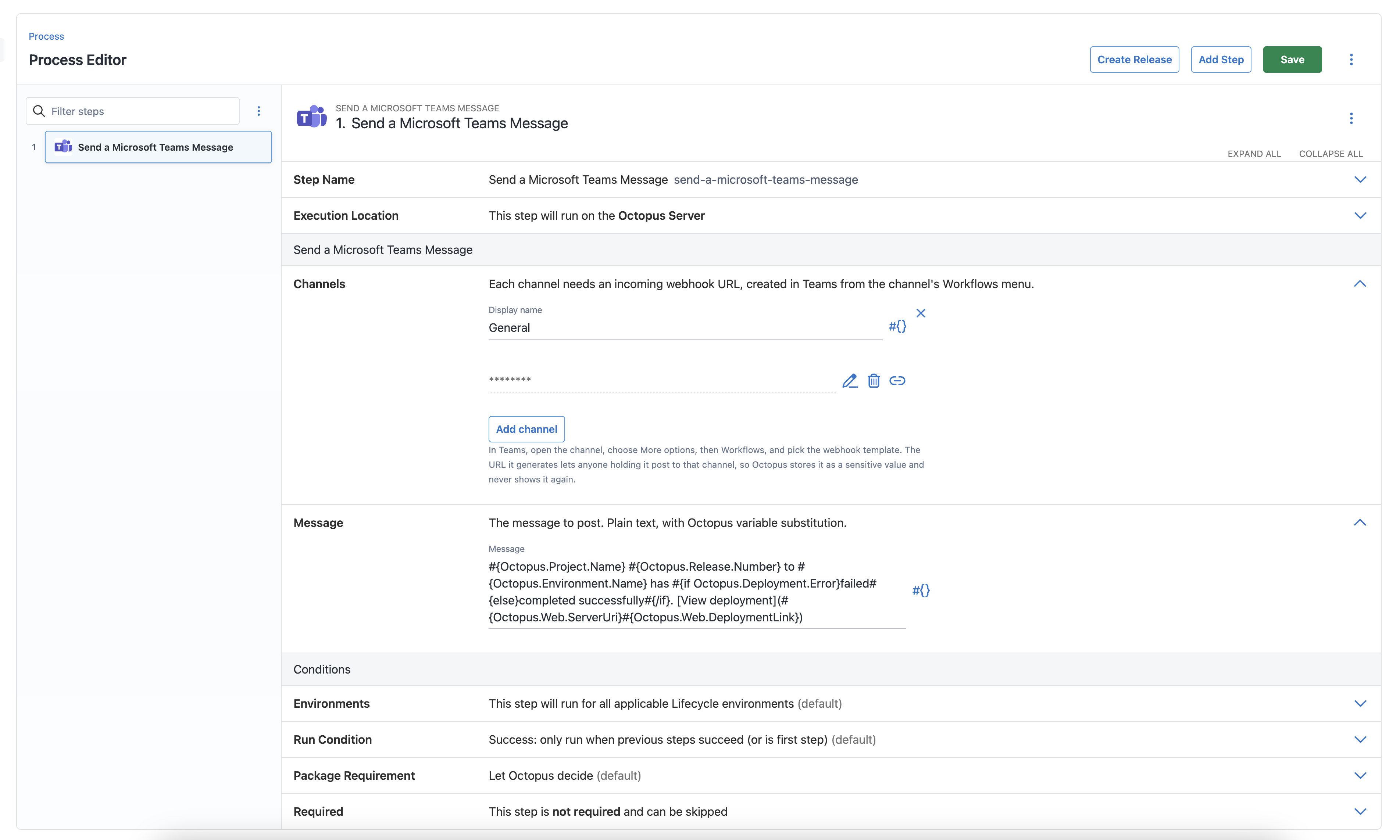
Add the step
-
Navigate to your project’s deployment process and click Add step.
-
Search for and select Send a Microsoft Teams Message.
-
Give the step a name.
-
Add one or more channels. If the integration is connected, pick a team and channel from the list. Otherwise, or to reach a private channel, add a webhook and enter a display name and its URL. You can use an Octopus variable for either if you want to vary it per environment or tenant.
Webhook URLs are sensitive. In version-controlled projects a webhook URL must come from a sensitive variable rather than being typed in, and Octopus only accepts a variable reference there.
-
Optionally set a Title, shown in bold above the message.
-
Enter the message to post.
-
Set conditions to control when the step runs.
-
Save the deployment process.
Message content
The step posts either a plain text Message or an Adaptive Card. Both support Octopus variable substitution.
Example
#{Octopus.Project.Name} #{Octopus.Release.Number} to #{Octopus.Environment.Name} has #{if Octopus.Deployment.Error}failed#{else}completed successfully#{/if}. [View deployment](#{Octopus.Web.ServerUri}#{Octopus.Web.DeploymentLink})For an Adaptive Card, paste card JSON from the Adaptive Card Designer and pipe any variable that can contain quotes or newlines through JsonEscape, or the card won’t be valid JSON when the deployment runs. Octopus sets the card’s schema version to 1, so design against that version. Buttons must be Action, because the Octopus app never receives anything back from Teams.
See system variables for the full list of variables available during a deployment.